Saturday, 4 November 2017

Sticky Keys

I have managed to turn on this feature on many occasions, and got myself into a sticky situation when it came to try and undo it!


This feature can help users with phsyical disabilities, or those users that can suffer from RSI (repetitive strain injury) by keeping the keys selected and allowing you to press multiple keys at the same time (i.e CTRL+A to highlight all text).

To enable sticky keys you need to press the SHIFT key 5 times in quick succession. Unfortunately it is not as easy to disable sticky keys. On some systems, you are able to press the key 5 times to disable them.

Depending on what version of your operating software you are using will determine the correct way to disable the sticky keys.

Going to the start menu and searching for ease of access will bring up a list of options - then uncheck the box to enable sticky keys and voila!

Software - The Science Bit!

In contrast to hardware, software is really the life blood of your computer. If Hardware is our bones and muscles, software is the blood and the organs.

There are many types of software, so I really need to simplify this as best as I can without making you switch off your computer in a blind panic.

System software is installed into your computer which allows it to work, and for you to use your computer and programs such as Word, Email, Internet. Some software is automatically installed into your computer or device when you purchase it, or you can buy further upgraded software, such as anti virus software and word processing packages.

The programs run on your computer and make your computer useful to you.


Saturday, 28 October 2017

Hardware isn't a Store you Buy Fork Handles From!

I remember several years ago, that I took on a temporary role as 'first line tech support' for British Telecom. In this role, I made a handful of friends, that I still keep in touch with today, but that was the first thing and last thing I liked about the job. I was really thrown in at the deep end.

Every day, I would have clients call me and give me their computer issue, and I had to determine what the problem was, which part they required to fix it and to schedule an engineer to go and fix it.

I had no idea about the inside and outside of a computer, and found the job extremely difficult. However, I persevered and I was amazed at how quickly I learned about something I had very little desire in.


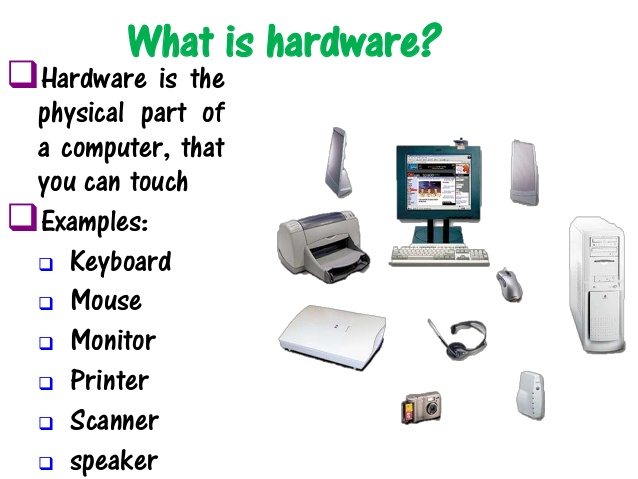
They say that pictures speak a thousand words and who am I to argue.


I think that the information here is pretty self explanatory, so although the list is not exhaustive, you can congratulate yourself on now knowing what hardware is!

Thursday, 26 October 2017

4 of The Best List Making Apps

Everyone loves a list, infact 'Listicles' - a piece of writing that contains a list, for example, the 10 Best Restaurants in London, or the 10 Ten Best Beaches in the World, are some of the most popular reads today. Short, sharp and snappy information, with visual pictures, inspiring our minds!
Anyway, I digress, there are some great apps available you to make lists, and as we have recently discovered what apps are, I think it is only fair to share some useful ones to get you started.

So, from shopping lists, to-do list, checklist, what to pack list - these following apps have been designed to help you create and manage your lists!


1. Wunderlist


I love the name first of all! It is available on Android and iOS, and is free to download, however, some of the features offer in-app purchases to unlock, such as file sharing. The app is easy to use, and allows you to create lists


2. Google Keep 


This is a great app, for those of you that enjoy colour coding lists. You can also add reminders to the lists, download audio recordings, and photos. You can also keep the lists indefinitely, great for all you Bridezilla's out there. Its a smart little app that helps you manage and control your life day to day.


3. Remember The Milk


One of the original list making apps, and compatible with iOS and Android. This app has been around for a while, and has continually been updated to keep it up there with its newer rivals. Great app, but expensive price tag to upgrade for features you get free with other apps.


4. Todoist


A great motivational to do list, for those of you who need inspiration to cross things off your list. It awards you with 'karma' points to help you achieve and accomplish your lists and goals. Overall a great clean app with plenty of benefits, however, you have to sign up to a yearly prescription to unlock all of the features.


There are many other to do list apps and features around, however, you can start to look at other choices once you get confident with navigating apps and downloading them! 

Appy Days and How to Find Them

Apps, short for Applications, is a piece of software (information for your device), that is down loaded to your phone, tablet or computer.

There is practically an App for everything these days, and I will be featuring some of my favorite ones throughout the blog.

Some apps are free to download, some contain in-app purchases allowing you extra features and benefits, and some you have to pay for to download them.

I was pretty amazed once I started to research apps, just what kind of information is out there at our fingertips.

How Do I get an app I hear you ask. The most common way is to use the software provided by your operating system, the most popular ones being Android (Google Play Store) and for ios (Apple) you have iTunes  and The App Store.

Find your app icon, open it and search until your hearts content. I have many Apps downloaded. for health, reading PDF's, scanning documents on my phone (saves me an hours commute to the office some days!)


No More Reading Your Screen Upside Down

The first time I managed to rotate my computer screen, I had absolutely no idea how I had achieved this feat of engineering, nor did I know how to get it back. The tried and tested method of switching my computer on and off again had failed miserably.

However, it is as easy as 123 to get that screen rotated the right way again, so no need to panic or stand on your head to use your computer. Phew!

The reason it has a screen rotation option is the same as using Microsoft word's landscape or portrait view, some things just look better rotated, especially when doing a presentation, so now you know.


All you need to do is press CTRL + ALT + UP ARROW button until the screen is the right way around! Yep, that is all! You are Welcome :) 

Wednesday, 25 October 2017

Handy Commands and Function Keys

Here are a few shortcuts you can use on your keyboard. Always hold down the Control (Ctrl) key first and press the second function key simultaneously for the command to work. Use these for example when editing a word or excel document.


Tuesday, 24 October 2017

Sharing Photograph's Online from your Phone or Tablet

We are a nation of selfie takers, and everyone wants to show off their latest pic, and I don't want you to miss out either.

If you have taken a photo on your tablet or phone, it is pretty easy to upload (the process of getting the picture to where you want it) to your facebook account, or chosen social media platform. Very often, you can select the picture you have taken and press the share symbol that looks like this:

The Share Symbol

When you see this, if you select the item that you want to share, then press this, it will give you a choice of options of how you can share it. Select the one that you want and hey presto! You have shared that fabulous selfie!

This option only works if you have the app that you want to share your photo's with on your phone or tablet. If you want to upload them via your PC, please see the next post!

Alternatively, visit the social media site you want to visit, and select upload photo, and when it asks you to chose from where you want to upload the picture from, press gallery, photos or wherever the picture is stored and click the picture or some devices have a multiple function where you can upload more than one at a time.

Monday, 23 October 2017

Opening a Facebook Account

So, you have decided to take the first step into the world of social media and open a facebook account. I am going to walk this through with you and include images.


Step 1.
First of all, you need to access the website for facebook, click here for access to www.facebook.com
You will find this page below.


Step 2.
Enter your details in the boxes under sign up - names, contact information and date of birth, your gender and click create account. See below for an example.


Step 3.

Facebook will as you to confirm your email for security reasons, and you will see the screen below. If you click on the blue box, it will automatically take you to your email provider to enter your details.


Step 4.

Click on the link in your emails to confirm the details. You may have been sent a code. Write this code down and go back to this page (you will find it in the tab above your pages with a blue square and white f symbol). Click on enter code and put the code you were given in. There may be a short time limit to do this, if you miss the time limit, you will have to repeat step 4 entirely.

Step 5.

You are good to go! You will see the page below, and many options are available to you.


You can't break your facebook page, so keep clicking on links until you feel comfortable navigating your way around the site. The worst you can do is update a status without meaning to, even then it can be deleted easy enough! Happy Social Networking, and congratulations on not giving up!

Sunday, 22 October 2017

Understanding Social Media - Part 2

So, lets look at some more symbols and platforms to get your social media knowledge up to date. I have not covered them all here, just the most used ones in my opinion.


Instagram
Ease of use rating: 4/5

In the second row, we begin with Instagram, a camera symbol within a square. Instagram is an app usually associated with your tablet. You can upload photos, add on filters to make everything look amazing, and share them with friends. You can chose who to follow, and the app will suggest people from your facebook friends if you link them together with your account. The app is compatible with ios (apple) and android systems. It will ask you to sign up an account using your email address. Look out for a later post on how to sign up for an email address if you need one!

Instagram can transform you pictures from this...


To this, in literally under a minute! A big relief for all of you that shoot too much sky or foreground! Watch the birdy!!


Snapchat
Ease of use rating: 2/5

This is an app that you would most like use on your mobile. You are really down with the kids if you get this app! This one is a bit of a mix of all of the others. The main purpose is to share pictures, but with a twist. There are all kinds of filters that you can use, give your selfie a halo with flowers, make yourself look like an animal, mostly pretty useless stuff, but the kids love it. Not my favorite app, but like to use it with my nephews to create funny pictures on a quiet day.


What's App
Ease of use rating: 5/5

The app that displays a greem square with a handset. Really handy if you live or have friends and famiy overseas as it allows you to send messages, photos, videos, phone and message calls for free, providing you have wi-fi access. To access the app, go to the apple store if you have an iPhone or apple product, or play store for android products, search for What's App and you can download it for free. You will need to sign up with your mobile number, and it will send you an access code by text message to enter, but the instructions are very clear and straightforward. Along with facebook, this is my other most used form of social media and networking. 

Saturday, 21 October 2017

Understanding Social Media - Part 1

So what does the term 'social media' mean?

If we break it down it may help. Social, is of course relating anything from our community around us, and extends to the big wide world. Media, is a mass mean of communication. So putting the two together, social media in a nutshell is a sharing of information, comments and photographs etc, to the audience you wish to target. We will look at some of the most popular platforms in more detail below.


Facebook (www.facebook.com)
Ease of Use Rating: 4/5

The first symbol above is Facebook, no doubt you have heard it with around 2 billion users across the globe, with its iconic blue square with a white square. Facebook was Mark Zuckerberg's creation in February 2004, along with Edward Saverin, both were students at Harvard College.

It is a social networking site - you can search for friends and family, old and new, share how you are feeling, add photographs, view pages of interest, play games and many more features. It is like a social CV, and you can put on here as much or as little information about yourself as you feel. You are able to control what information is shared about yourself and with whom.

You are able to access facebook via apps on your phone or tablet and via a laptop or p.c. You need to enter some personal information and an email address in order to set up an account.

There are functions for personal and business use, and both are effective forms of communicaton. When connected to wi-fi or you have data, you are able to private message friends, add photos and updates, or some business owners use it to share information about what is going on. Minumum age restriction is 13 years of age. There is a decent beginners guide to facebook, courtesy of lifewire, click here to access the guide.


Twitter (www.twitter.com)
Ease of use rating: 3/5

Have you blue square with a white bird? That is Twitter, and has around 328 million users. Short sharp bursts of information publicized to the world is the easiest way to describe Twitter (like a bird's tweet in the morning)

There is a 140 character limit on twitter which can be very frustrating, so most likely to include a web link to attract people to the information you want to shout about, or an image with a few words underneath.

Follow your favorite celebrity, fashion, industry, sport or hobby to name but a few to keep up to date with latest information and trends! Or start your own twitter feed about something that interests you!


Youtube (www.youtube.com)
Ease of use rating: 5/5

You tube symbol above is a red square with a white button and is essentially a video sharing platform. You can search for videos relating to your particular area of interest. From music, tv, funny videos, how to learn a skill, basically anything.

It is a quick way for Joe Public to get 5 minutes of fame - remember Psy and 'Gangnam Style' this started from a you tube post that went viral. Going viral means in social media terms, something that spreads through the population rapidly. The video was uploaded on 15th July 2012, and by 30th May 2014 had received over 2 million views

Anything you post on here can be seen by anyone using you tube, so upload with care!

How to Google

So, one of the best functions on the internet is Google. Google is a search engine and allows you to enter words, a question, a statement, anything you like and it will come up with answers. The more accurate your search term, the more accurate the results.

Now, the world wide web (www.), yep that is what is stands for, will yield many many results, and you have to use judgement on what information to believe. The internet is full of good and bad, so always check the website you are on - is it a well known site, is it fact or opinion. You may want to look at a few of the answers that google has thrown up for you to be sure.

You might want to google a simple D.I.Y task, such as putting up a shelf. A good way to do this would be to put 'D.I.Y put up a shelf' in the google search box, which is a free type box. Press the enter key and wait for the results to show on the next page. There will probably be pages and pages of results, however, the first few pages will yield the closest results for you. If you are looking for something very specific, such as a person, you may need to filter through every page until you find what you are looking for.

With google, the world really is at your fingertips, you can google images, videos, quotes, how to do..., jobs, buying items, pretty much anything that you can imagine.

There are other search engines, such as Bing, but I do not find them as accurate or reliable with the information returned, but everyone will find their own preference.

Have a go, and if you need any further help or advice, pop me a question here.

Happy Googling!

Welcome to My 'How to Do i.T' Blog

First of all, this blog is dedicated to my Dad, the handiest man in the universe when it comes to D.I.Y, navigating any country on earth, but give him a screen and a keyboard and he has a mini meltdown.

First of all - there is no shame in being a technophobe. Technology is still relatively new and is changing all of the time, so nearly impossible to keep up with.

Here, I plan to blog about the basics, and give tips and hints on using your computer for relatively simple tasks, who knows, you might even begin to enjoy it and set up your own blog!

I hope you enjoy the blog, and are able to humour me as sometimes, even I get it wrong. I have no degree in I.T or am no expert, and my aim is to show people that with a bit of patience, anyone can create a spreadsheet, work a PC, download apps, trouble shooting, or whatever you would like to do.

Go wild and learn something new today with 'How to Do I.T'